
Why Google Search Console Flags Your Site, and How FlyingPress Fixes It
If you’ve ever opened Google Search Console and seen a wall of red under the Core Web Vitals report, you know the feeling. Pages flagged as Poor, others stuck in Needs Improvement, and a vague sense that your rankings are quietly bleeding because of something technical you can’t quite put your finger on.
Search Console isn’t guessing when it flags your pages. It’s pulling field data from real Chrome users and grouping your URLs by type, then scoring each group on three things.
Largest Contentful Paint is how long it takes your biggest visible element to actually render. Interaction to Next Paint measures how snappy the page feels when someone clicks or taps something. Cumulative Layout Shift catches that annoying jump when content loads in late and pushes everything around.
Fall short on any one of those and the whole URL group gets marked as underperforming, and since 2021 this has been a real ranking factor, not just a vanity metric sitting in a dashboard nobody checks. If you want the deeper breakdown of each metric, we cover that in our Core Web Vitals guide.
The frustrating part is that Search Console tells you what’s wrong but never how to fix it. You get a list of affected URLs and a metric name. Actually solving it means digging into render-blocking CSS, unoptimized images, third-party scripts, and server response times, which turns into a full afternoon for most people before they’ve even changed anything.
A typical WordPress site tends to lose points in the same predictable places. Slow LCP usually comes from unoptimized hero images and CSS or JS loading before anything visible even happens on the page.
INP problems tend to trace back to bloated JavaScript, often from a page builder or a stack of plugins all firing their own scripts at once. CLS issues almost always come from images missing set dimensions, ads or embeds that load in late, or web fonts that swap in and shift the text around after the fact.
None of this is exotic. It’s just the default state of an unoptimized WordPress install, which is exactly why so many sites show up red the first time anyone actually checks that report.
This is where FlyingPress earns its keep. It treats all of this as one connected system instead of a pile of settings you have to reverse-engineer yourself, which we go into more in our WordPress caching guide if you want the full setup walkthrough.
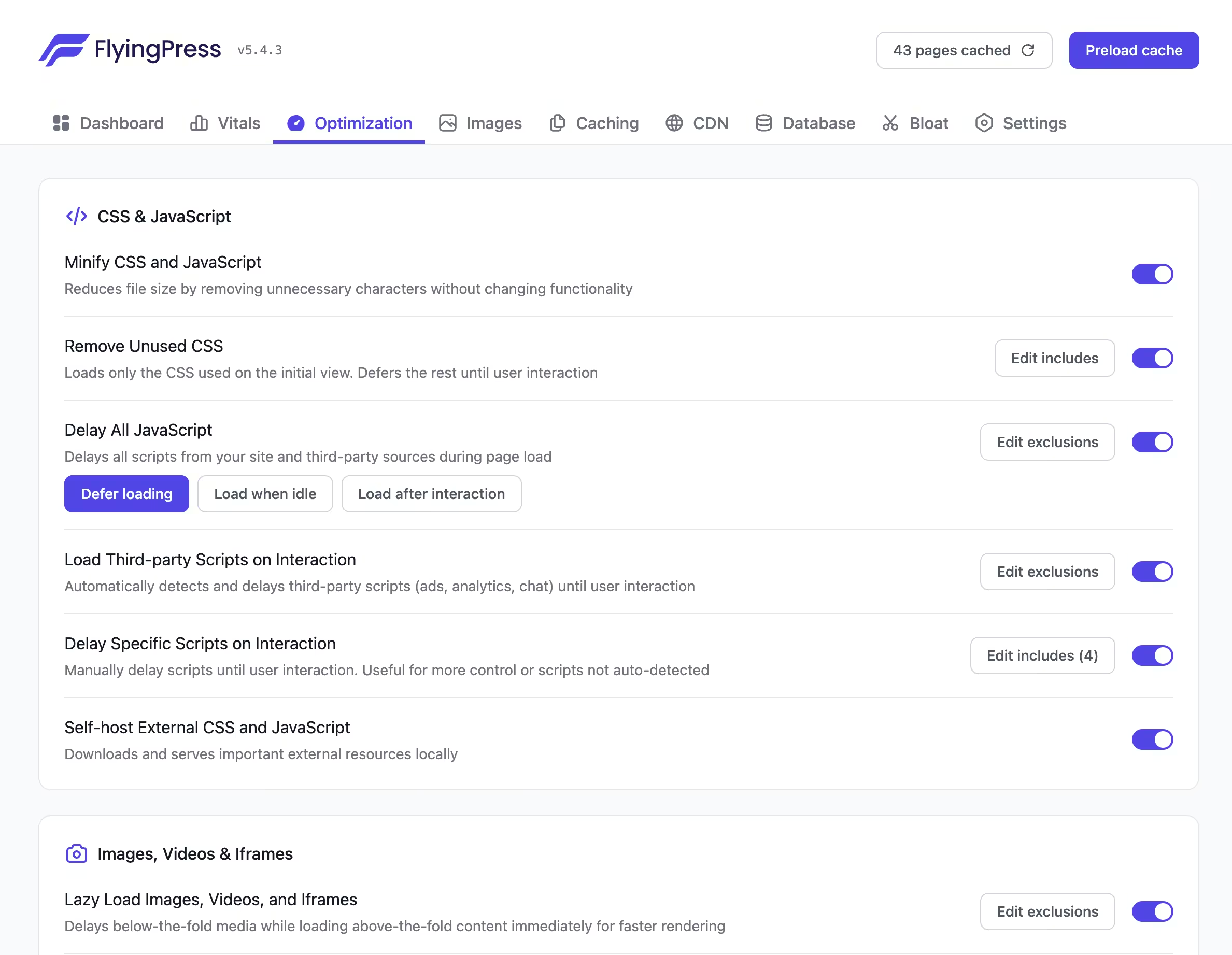
It handles page caching with automatic preloading so visitors always land on a cached version instead of triggering a fresh PHP render, which is a direct hit on both LCP and server response time. It generates critical CSS automatically so the visible part of the page can paint before the rest of the stylesheet finishes loading, and it defers or delays non-essential JavaScript so the main thread isn’t tied up when someone tries to interact, which is the main lever for INP.
On the image side it lazy-loads anything offscreen, serves modern formats through its CDN, and can auto-set width and height attributes, which happens to be one of the most common fixes for CLS.
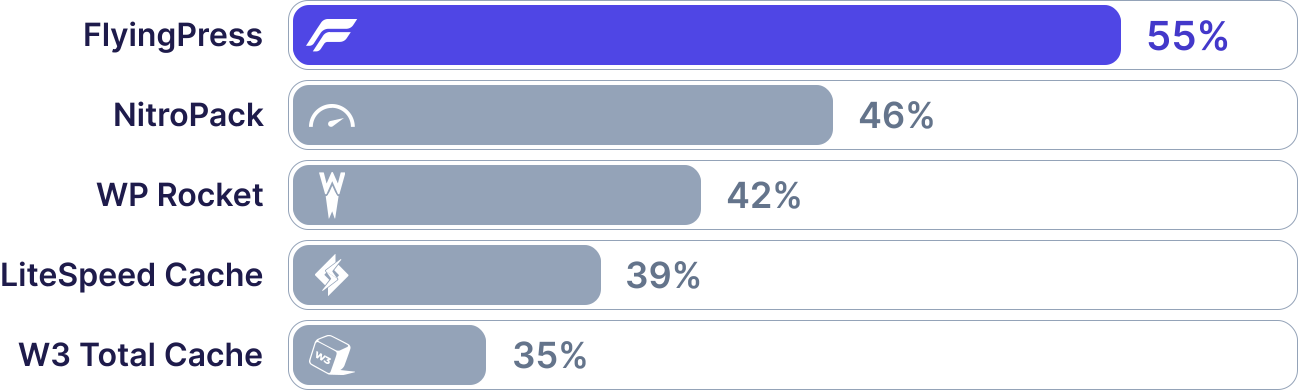
The part that actually closes the loop with Search Console is FlyingPress Vitals, a built-in real-user monitoring dashboard that shows your own LCP, INP, and CLS numbers within hours instead of waiting on Search Console’s much slower rolling data window.
That means you can make a change, watch the real numbers move in your own dashboard, and confirm the fix is working well before Search Console’s field data catches up and actually clears the warning.
Sites moving off an unoptimized setup with no caching in place at all tend to describe a similar arc. Pages that previously failed the assessment on both mobile and desktop start passing consistently, load times drop somewhere in the 30 to 40 percent range, and the Search Console report gradually reclassifies URL groups from Poor to Good over the following weeks as real user data catches up.
None of this happens instantly, since Search Console works off a rolling window of actual Chrome traffic rather than a live test, so don’t expect the report to flip green the day you turn the plugin on. You’ll see it happen gradually as the underlying real-user metrics improve and enough fresh data piles up.
That’s exactly why keeping an eye on FlyingPress’s own Vitals dashboard in the meantime is useful. It’s the leading indicator, and Search Console is just the slower one that eventually confirms it.
If your Search Console report is already clean, none of this is urgent for you. But if you’re staring at a page full of Poor and Needs Improvement groups with no real path to fixing it short of hiring a developer, this is the kind of tool built specifically for that gap.
It won’t fix genuinely broken code or a bad theme, but for the standard causes of Core Web Vitals failures on WordPress, caching, unoptimized images, render-blocking assets, and heavy JS, it covers the majority of what actually shows up in that report. For a closer look at how it stacks up against the other big caching plugins, check out our full FlyingPress review.
If you want to give it a try, here’s the link: flyingpress.com