
How to Audit GA4 Broken Event Tracking on WordPress
Before you touch a headline, a button colour, or a single word of copy, it’s worth stopping and asking a much less glamorous question: is your analytics setup even telling you the truth?
I’ve lost count of the sites I’ve gone through where the enquiry numbers in GA4 didn’t match reality. Sometimes it’s counting nothing at all, a form people are clearly submitting but that never shows up as a conversion. Other times it’s the opposite, the same submission getting counted twice, which is arguably worse because everything looks like it’s working while your numbers quietly inflate and hide whatever’s actually going wrong on the page.
Either way, you’re making decisions off a number that was never real. Learning to audit GA4 broken event tracking properly is one of those unglamorous skills that hides in plain sight, which is exactly why it needs doing before conversion rate work, before a redesign, before anything. If the measurement layer’s broken, everything built on top of it is guesswork wearing a data costume.
It’s also worth saying plainly: bad tracking doesn’t just mean bad reports. It means you can end up chasing an SEO problem that was never really there, because what looks like a rankings or traffic issue is sometimes just the numbers underneath it lying.
Why this comes before anything else
Had a client a while back convinced their contact page was underperforming. Traffic looked healthy, the page itself was reasonably well built, but the conversion numbers in GA4 sat stubbornly low month after month. The instinct there is always to fix the page. Rewrite the headline, shorten the form, bolt on some trust signals.
We didn’t. We audited the tracking instead and found a duplicate GA4 tag firing across the whole site, not just that page. One tag had been added manually years back into the theme’s header file by a previous developer, and a second more recently through an SEO plugin that quietly bundles its own analytics integration. Neither person who added either one knew the other existed.
Every page’s conversions were getting counted twice, which meant every page looked like it was converting roughly twice as well as it actually was. Except the contact page, where a separate issue meant one of the two tags wasn’t catching the AJAX submission at all.
So the contact page was being measured accurately by one tag and not at all by the other, while everything around it was inflated. Against that backdrop the contact page looked like the underperformer purely because everything else was being counted wrong.
Fixing it took about twenty minutes once we found it. Finding it took longer, because nobody had thought to check. Spend that time redesigning the contact page instead and you’ve “fixed” a problem that never existed, while the real one sits there untouched.
Tracking problems don’t announce themselves, that’s the annoying part. The site looks fine. Forms appear to submit. Thank you pages load. Nothing visually breaks. The only way you find out something’s wrong underneath is by going and looking, which almost nobody does until the numbers have already steered them somewhere wrong for months.
Worth flagging too, before you start adding more scripts to fix this: a site that’s already carrying too many plugins or a bloated theme is more prone to exactly this kind of tag conflict in the first place. If your site’s already sluggish, sorting that out tends to clean up a fair bit of the mess underneath tracking as well.
Duplicate installs: the most overlooked reason to audit GA4 broken event tracking
First check, takes about ninety seconds, no excuse for skipping it. Open the site in an incognito or private window so you’re seeing it the way a fresh visitor would, no cached scripts or extensions muddying things. Right click, view page source, then use your browser’s find function to search for “G-” followed by a string of letters and numbers. That’s your GA4 measurement ID.
You’re checking whether that ID shows up more than once, or whether there are two different measurement IDs sitting on the same page. Either one points to a duplicate install, and on WordPress it’s remarkably common, mostly because there are so many places GA4 can get added without anyone realising it’s already there.
Usual culprits: a manual snippet pasted into header.php by whoever built the site originally, plus a second automatic install through a plugin on top. Site Kit by Google trips people up a lot here simply because it’s so easy to set up that people forget they already had tracking somewhere else. Rank Math and other SEO plugins often bundle their own analytics connection. Dedicated tracking plugins, caching plugins with a built in analytics feature, and page builders that offer their own “connect your GA4” option all add to the pile.
Any site that’s changed hands between a few different developers or agencies is a strong candidate for two or three of these running at once, each added in good faith by someone with no way of knowing the others were already there.
Duplicate tags mean duplicate events, and that’s easy to say but worth sitting with for a second. This is GA4 broken event tracking in its most common form, not a missing event but a doubled one. Every conversion, every page view, every scroll trigger you’ve set up gets counted twice, sometimes three times, without anything looking visually wrong on the page. Bounce rate looks better than it is. Conversion rate looks better than it is. None of it’s real.
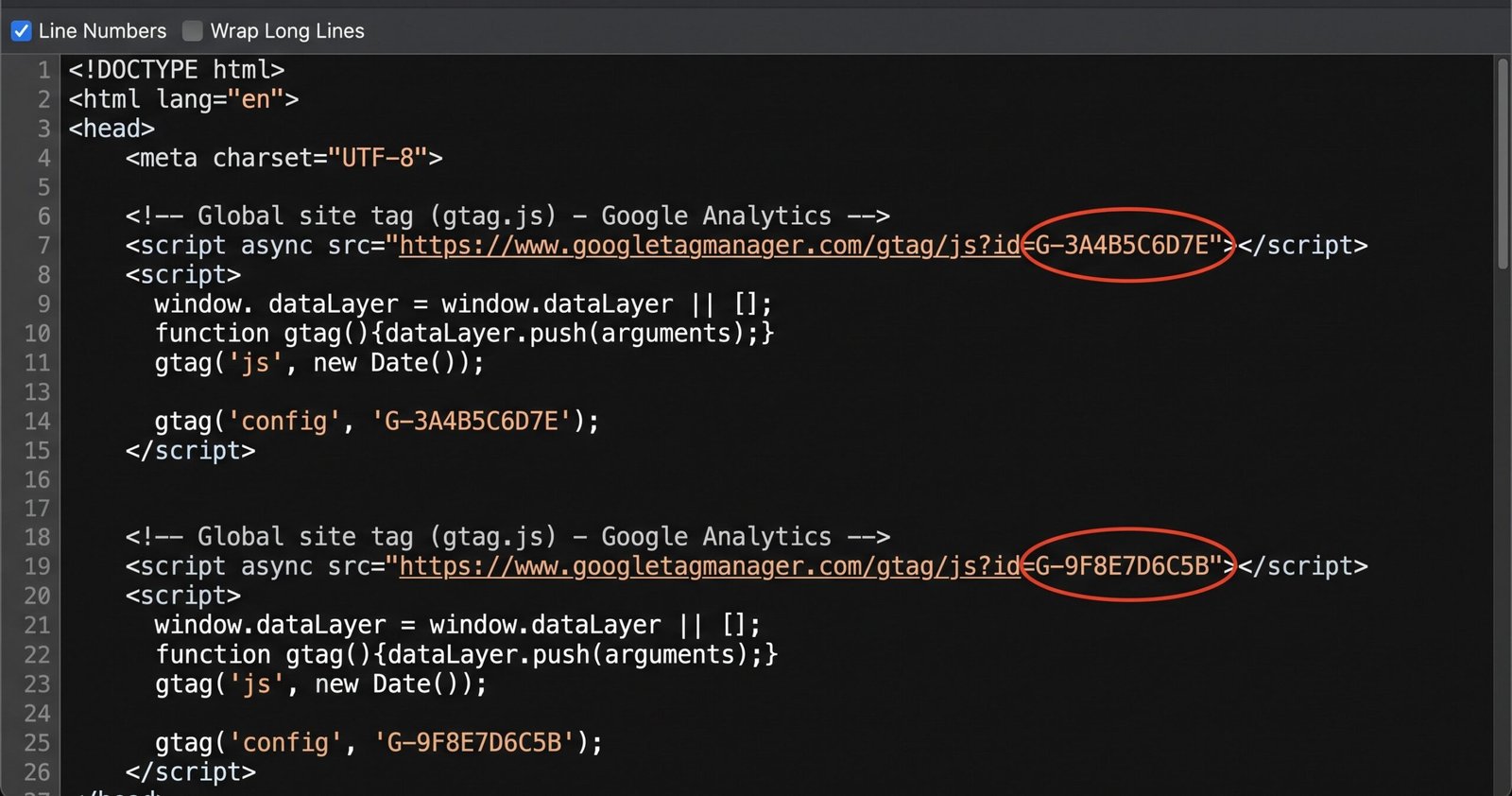
Found a duplicate? Pick one install method and remove the rest. I’d generally lean towards keeping things inside Google Tag Manager rather than hard coded into the theme or scattered across plugins, mostly because it’s one place to manage everything going forward instead of five settings panels every time something needs changing.
Using Google Tag Manager’s preview mode properly
If you’re managing tags through GTM rather than pasting GA4 code straight into the theme, preview mode is where the real diagnostic work happens, and where most people learn to audit GA4 broken event tracking properly for the first time. Worth actually understanding it properly rather than clicking through once and hoping for the best, which is what most people do.
Open GTM, click preview, enter your site’s URL. This launches your live site in a new tab with a debug panel attached underneath, usually a separate window or split pane depending on your browser. That panel shows every tag on the page and whether it fired, in real time, as you click and scroll and interact with the site the way a visitor would.
Google’s own documentation on preview mode covers the basic mechanics if you’ve never opened it before, though it doesn’t go much into what you’re actually meant to be looking for once it’s open.
Don’t just glance at the homepage load and call it a day. Actually submit a real test enquiry through the form while that panel’s open and watching. It’s the only way to see what genuinely happens at the moment that actually matters.
Two things you’re watching for. Does your conversion event fire at all when the form succeeds? The debug panel lists every tag that fired on that page in a timeline down the left, and clicking into any of them shows the trigger conditions underneath.
If your GA4 conversion event isn’t in that list at the moment of submission, or sits greyed out under “tags not fired”, that’s your answer, GA4 was never told the conversion happened. Doesn’t matter how well the form works from the visitor’s side. If it’s not in the fired list, it’s not in your reports.
And does it fire exactly once? See the same event listed twice within a second or two of each other and that’s a duplicate trigger, the GTM version of the duplicate installation problem above. Usually it’s two separate things both listening for the same submission, a form plugin’s own built in GA4 push running alongside a GTM trigger someone set up manually to watch for that same event, both firing off the back of one submission. Each one’s doing exactly what it was configured to do. Together they double every number coming through that form.
Reading that panel properly is honestly most of the skill here. Tags that fired sit in one list, tags that didn’t in another, and clicking into any tag shows which trigger caused it and what data layer variables were available at that moment. If something’s sitting under “not fired” when you expected otherwise, click in and check the trigger conditions against what actually happened on the page. Nine times out of ten the mismatch is obvious once you’re looking at it directly instead of guessing from outside.
One thing worth keeping in mind while you’re in there: if the site’s running tracking through several plugins and a heavy theme on top, that’s often the same setup that’s slowing everything else down too. A cluttered script load doesn’t just cost you speed, it’s part of why tags collide or fail to fire in the first place.
No Tag Manager? Use Tag Assistant and GA4’s DebugView
Plenty of smaller WordPress sites don’t run everything through GTM. GA4 code pasted straight into the theme, or added through a plugin with no tag management layer over the top, means no GTM preview mode. Doesn’t mean you’re stuck though.
Google’s Tag Assistant browser extension does a similar job from outside GTM. Install it, visit the site, it’ll show every Google tag it detects along with basic status on whether it’s sending data correctly. Less detailed than the GTM debug panel, but usually enough to confirm whether GA4 is present at all, and whether there’s just the one instance.
GA4 itself also has a built in DebugView sitting under Admin in the property settings. Turn on debug mode, either through the GA4 DebugView Chrome extension or by adding a debug parameter to the GTM setup temporarily, and it streams events live into that view as you interact with the site.
Arguably clearer than the GTM panel for confirming what GA4’s actually receiving, because it’s looking at the data from the other end, after it’s landed on Google’s servers, rather than the moment it left your browser. If GTM shows a tag firing but DebugView shows nothing arriving, the problem’s somewhere in delivery, not the trigger. Useful thing to know when you’re narrowing down where it’s actually breaking.
What you’ll find when you audit GA4 broken event tracking
Once something’s confirmed broken, it helps to know the shortlist of usual suspects.
Most common one I run into on WordPress sites is a mismatch between how the form actually submits and how the tracking trigger’s set up to detect success. A lot of GTM setups use a page view trigger pointed at a specific thank you page URL, fine if the form does a full page reload on submission and lands the visitor there.
Except plenty of modern form plugins, Gravity Forms, WPForms, Contact Form 7 in certain configurations, Ninja Forms, submit through AJAX by default. Page never reloads. The success message just appears in place, same URL the visitor was already on.
If the trigger’s still waiting for that thank you page to load, it simply never fires, not because anything’s broken with the form, but because the event it’s listening for never actually happens. Visitor gets their confirmation message, everything looks fine to them, GA4 records nothing.
Fix is switching the trigger away from a destination URL onto something that actually happens during an AJAX submission. Usually an element visibility trigger watching for the success message the plugin injects into the DOM once it’s done, or a custom JavaScript event the plugin pushes into the data layer that GTM can listen for directly. Most decent form plugins document what that success indicator actually is, it’s just rarely the first thing anyone thinks to go looking for, because on the surface the form still looks completely fine.
Second cause, touched on above already, is a plugin quietly doing its own GA4 push behind the scenes while a separate manual GTM setup runs in parallel, and nobody remembers the first one was ever switched on. A form plugin with a built in Google Analytics integration, an SEO plugin bundling analytics, a caching plugin with an analytics add on, all running alongside a hand built GTM container nobody documented properly.
None of it’s wrong on its own. Each one’s doing exactly what it says it does. The problem’s that they don’t know about each other, and the result is the duplicate firing from earlier, quietly doubling your reported conversions for months.
Worth knowing about too, and this has become more relevant the last couple of years, is consent mode and cookie banners. If the site runs a cookie consent tool configured to block GA4 until the visitor actively accepts, and a decent chunk of visitors dismiss the banner or just leave without interacting with it, those visits and any conversions in them may never get tracked.
Not really a bug, the tool’s doing what it’s meant to from a compliance angle, but it does mean GA4 can genuinely undercount real traffic and real conversions for reasons that have nothing to do with tags firing correctly. Worth checking the consent banner’s default state before assuming every gap in the data is a technical fault.
Ad blockers are a version of the same problem from a different angle. A decent slice of visitors, more on desktop, run extensions that block Google Analytics scripts outright. Nothing to fix there on a per site basis, but worth knowing it exists as a baseline reason your GA4 numbers will never perfectly match server side logs or a CRM count, even once everything above is working exactly as it should.
Once you’ve worked through all of that and the tracking’s actually clean, a different problem usually comes into focus. You can finally see the real numbers, and often that’s when it becomes obvious the traffic isn’t converting the way you’d assumed. That’s a separate job to the one covered here, but it’s the natural next place to look once you can trust what you’re measuring.
Cross checking against real numbers
Once you think it’s fixed, don’t just trust the preview panel or DebugView and call it done. Preview mode confirms a tag fired once, on one browser, in one test. It doesn’t confirm the fix holds up across real visitors on real devices over time.
Submit three test enquiries spread across a day, different devices or browsers if you can manage it, and check whether GA4 reports three conversions for that period. Not six, meaning the duplicate’s still there in some form. Not zero, meaning it’s still not firing, possibly for a different reason than the one you just fixed.
Running a CRM, a booking system, even just an inbox that logs enquiries? Compare that count against what GA4’s showing for the same window. A gap either way is the clearest sign something in the chain is still broken, even after you’re fairly sure you’ve fixed it. This step catches the stuff that only shows up under real conditions, different browsers, different form fields, mobile versus desktop, that one manual test in preview mode won’t necessarily reveal.
I’d make this a standing habit rather than a one off. Once a quarter, run the same three test enquiries, check against the CRM count again. Plugins update. Themes change. Someone adds a new tracking tool without checking what’s already there. The setups that stay accurate long term are the ones somebody’s actually keeping an eye on, not the ones that were configured correctly once and never looked at again.
What happens after you fix tracking
Clean data changes how you make decisions. You stop guessing. You start seeing which pages are actually pulling their weight, which ones aren’t, and roughly where people are dropping off along the way.
That’s usually the point where two different threads open up. One is realising some of what looked like an SEO problem was really a measurement problem, worth a proper look at how the site’s actually ranking and being found. The other is the conversion side itself, now that you can trust the number, is it actually as low as it looked, or was that partly the tracking too.
What this actually sets up
Fixing broken event tracking doesn’t improve your conversion rate on its own. Doesn’t make the form shorter, the headline sharper, the page load faster. All it does is make the number you’re looking at finally real.
That’s the whole point of doing it first though. Page speed, form friction, layout shift, better copy, a stronger call to action, none of it’s worth prioritising until you can actually measure whether it worked. A site where nobody’s ever bothered to audit GA4 broken event tracking, still counting double or missing conversions because a trigger’s watching for the wrong event, means none of those other fixes will show up clearly in the data even when they’re genuinely working underneath.
It’s worse than just hiding good results too, it actively produces bad decisions. You deprioritise a page that’s actually performing well because a duplicate tag made everything around it look artificially strong by comparison. You spend budget optimising a form that was never broken while the real leak sits somewhere else entirely, invisible because the tag watching it never fired in the first place.
If tracking’s the thing that’s broken on your site, fixing it is step one. After that, the honest next questions are usually why the pages aren’t ranking the way they should, why the site feels slower than it needs to, and why visitors aren’t converting once they land. Those are the three places I’d look next:
Fix Website Speed · Fix SEO & Rankings · Fix Conversions
This is the first piece of the structural conversion architecture I cover under Fix Conversions, alongside the form and layout diagnostics that come after it. My private practice is currently at full capacity, but you can check my current availability or join the waitlist on the enquiry page.