
What Is Google Tag Manager, and Why Do You Actually Need It?
I spent a fair while using Google Tag Manager without really understanding what it was for. I could follow instructions, paste in a code snippet, click publish. Ask me why any of it mattered, or what problem it solved, and I’d have come up short.
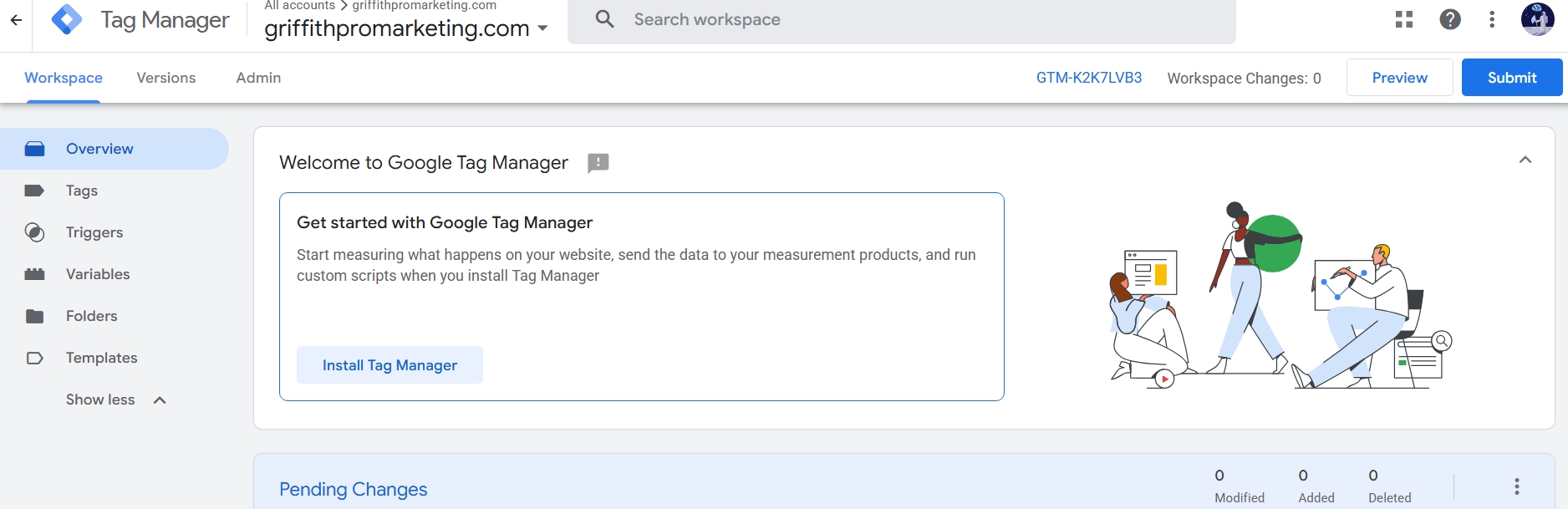
The Tag Manager overview screen. Familiar looking, not particularly self-explanatory.
So this is the one I wish someone had handed me early on, before I built a container with nothing in it and called it done. If you’re setting up tracking on your own site for the first time, read this before you touch anything.
What Tag Manager Is
Google Tag Manager is a tool that lets you add and manage tracking code on your website without touching your site’s own code every time you want to change something.
A “tag” in this context is a snippet of tracking or marketing code. Your Google Analytics tracking, a Facebook Pixel, a conversion tracker for Google Ads, a script that watches how far someone scrolls down a page. Each one of those is a tag.
Before Tag Manager existed, adding any of these meant going into your site’s theme files, or asking a developer to do it, every single time. New tracking pixel for a new ad campaign? Code change. Campaign’s over, want the pixel gone? Another code change. On WordPress specifically, that usually meant editing theme files directly (risky) or leaning on a separate plugin for each tracking tool (messy, fast).
Tag Manager sits in the middle of all that. Install it once, and from then on every tag gets managed through Tag Manager’s own interface. No more touching your site’s code for each new tool.
What GA4 Is, and How It’s Different From Tag Manager
Before going further, it’s worth stopping to define GA4 properly, since I already used the term once above without explaining it.
GA4 stands for Google Analytics 4. It’s the current version of Google Analytics, the tool that shows you the numbers, how many people visited, which pages they looked at, where they came from, whether anything they did on your site counted as a conversion. It replaced the older version, Universal Analytics, which Google fully shut down in mid-2024. Not an optional upgrade any more. The only version left.
The real difference from the older version is how it tracks activity. Universal Analytics was built around sessions, treating a visit as one block of time on your site. GA4 tracks everything as individual events instead: a page view is an event, a click is an event, a form submission is an event, a scroll past a certain point is an event. That shift matters, because almost anything happening on a page can now be measured on its own, rather than lumped into one general session.
Here’s the distinction that matters for this post: Tag Manager and GA4 aren’t competing tools, and they’re not the same thing either. Tag Manager is the delivery system, the thing that manages and fires tracking code. GA4 is one destination that code can be sent to. Tag Manager won’t show you a single graph or number on its own. GA4 is where you’d go to read one.
Put simply, Tag Manager decides when and how something gets sent. GA4 is one of the places it lands, and the place you’d open up afterwards to see what happened.
The Problem It Solves
The real problem Tag Manager solves isn’t really technical, it’s organisational.
Before it existed, if a business wanted to add five different tracking tools to a site, that usually meant five separate installations, five separate places something could break, and five separate reasons to bother a developer. Marketing teams were stuck waiting on developers for changes that had nothing to do with how the site actually functioned, just what data was being collected about it.
Tag Manager separates those two things properly. Your site’s own code, the stuff that makes pages render and work, stays untouched. Tracking code lives inside Tag Manager instead, managed through its own interface, published on its own schedule, no one needing to touch the actual codebase each time.
That’s the whole point, really. One install, on every page, and everything after that happens inside Tag Manager itself.
The Four Things Living Inside a Container
Tags, triggers, variables, and the dataLayer, the four pieces that do the work. (Apologies for the slightly oversized image, still working out the ideal export size for these diagrams.)
A “container” is what Google calls the whole setup for one specific website. Everything you build lives inside it, and it’s made up of a few different pieces that all work together.
Tags are the tracking snippets themselves, the thing that fires and sends data somewhere. A GA4 configuration tag. A conversion tracking tag. Each one does one job.
Triggers decide when a tag fires. Without one, a tag just sits there, built but never switched on. A trigger might say “fire this tag on every page view,” or something more specific, “fire this tag only when someone clicks the button with this exact class name,” or “fire this tag only when someone reaches 75% scroll depth on this particular page.”
Variables are pieces of information Tag Manager can grab and use, either automatically or ones you build yourself. Built-in variables cover the basics, the current page URL, the referring site, that sort of thing. Custom variables are ones you define for something specific to your own site, like the price of a product someone just added to a cart, or which specific form on the page someone just submitted.
The dataLayer is the piece that trips people up the most when they’re starting out, myself included. It’s essentially a small object sitting in the background of your page, holding information your site is willing to hand over to Tag Manager, things like what page category someone’s viewing, or what happened when someone completed a purchase. Tags and triggers can read from the dataLayer to make decisions, without needing Tag Manager to somehow already know everything about your site on its own.
Put together, a tag is the thing that fires, a trigger decides when, and a variable often supplies extra detail about what’s happening, sometimes pulled straight from the dataLayer.
How It Works On a Website, Step by Step
The install itself is simple, which is part of why it’s easy to assume the job is done the moment the code’s pasted in. Really, it’s just two small pieces.
The first snippet goes as high in the page’s head section as possible. This is the piece that loads Tag Manager and lets it start managing things.
The second snippet, a noscript tag wrapped around an iframe, goes immediately after the opening body tag. This one exists specifically for visitors who have JavaScript disabled in their browser, which is rare these days but still worth covering, since it means tracking still has a fallback path even without JavaScript running.
Once both pieces sit on every page, Tag Manager is technically live on your site. Live isn’t the same as useful though. An empty container with nothing built inside it still counts as successfully installed. It’s just not tracking a single thing, which is exactly the trap I fell into the first time.
After that, everything happens inside Tag Manager’s own dashboard. You build tags, attach triggers, add whatever variables they need, then publish. Publishing matters here: changes sit in a workspace first, a kind of draft mode, and nothing goes live until you hit submit. Useful, since it means building and testing without risking a half-finished edit going live by accident.
Before publishing anything, Tag Manager has a preview mode, worth using every time, not just occasionally. It connects your browser directly to the unpublished workspace version of your container, so you can browse your own site and watch, live, which tags fired, which triggers set them off, and what data passed through. The difference between hoping something works and watching it happen before anyone else sees it.
Every time you publish, Tag Manager also saves that as a numbered version, with a full history sitting under the Versions tab. If something goes wrong after a publish, a tag stops firing, a trigger starts activating in the wrong place, you can roll straight back to the previous working version rather than trying to manually undo whatever changed. That safety net is one of the more underrated parts of the whole system, and not something you’d get from pasting tracking scripts directly into a theme file by hand.
The Analogy That Finally Made It Click
I’ve heard Tag Manager compared to a power board, fair enough, but the one that made sense to me was a bit different: more like a building’s reception desk.
Your website is the building. Every different tracking tool, GA4, an ads conversion pixel, a heatmap tool, is a different visitor who needs to get to a specific floor. Without Tag Manager, each one of those visitors needs their own separate entrance built specifically for them, wired directly into the building’s structure. Want a new visitor type in? Someone has to go build a new entrance.
Tag Manager is the reception desk. Every visitor comes through the same front door, gets checked in, and gets pointed toward wherever they need to go, based on rules already set up. Adding a new visitor type doesn’t mean rebuilding the entrance. Just a new rule at the desk. The building never changes.
That’s the whole value in one image. One door in, everything managed and routed from a single point after that.
Common Tags People Use
It helps to see a few concrete examples rather than talking about tags in the abstract, so here are the ones that show up most often on a small business site like mine.
A GA4 configuration tag is usually the first thing anyone builds, since it’s the foundation everything else sits on top of. It fires on every page view and tells Google Analytics a visit happened.
A GA4 event tag goes further than the basic page view, tracking something specific: someone clicking a particular button, submitting a form, or in my case, clicking through on one of the affiliate links on this site. These are the tags that tell you whether something you built is working, not just that someone showed up.
A Google Ads conversion tag matters if you ever run paid ads, since it’s what tells Google Ads that a specific action, usually a purchase or a lead, happened because of a specific campaign. Without it, you’re paying for clicks with no way to measure whether they turned into anything at all.
A remarketing tag lets you show ads later to people who’ve already visited your site, which is a separate thing entirely from measurement, but still commonly managed the same way, through the same container, alongside everything else.
Why My Old Container Was “Installed” But Not Working
This is the part I understand properly now, looking back at my old digitalpromarketing.net container. The install itself, the two code snippets, wasn’t the problem. You can get that part exactly right and still have nothing happening underneath it.
My old container had zero tags, zero triggers, zero variables built. The container existed, and had presumably been installed at some point, but nothing inside it had ever been configured. Meanwhile, a separate tracking snippet, installed completely outside of Tag Manager, had been dropped in somewhere on the site by itself, ran for a while, and then quietly stopped working with nothing set up to alert me.
Two separate, half-finished tracking attempts, neither one doing the job, and no way to know without going back in and checking manually, which I didn’t do for a long time.
Do You Need It If You’re Already Using a Plugin Like Rank Math?
Fair question, and one I didn’t have a clear answer to myself for a while.
Plugins like Rank Math can connect Google Analytics directly to a WordPress site without going through Tag Manager at all. Perfectly valid, simpler path, if analytics tracking is the only thing you need.
Tag Manager earns its place once you need more than one tracking tool, or want more control over exactly when and how something fires. If basic GA4 tracking is all you need, a direct plugin connection is perfectly fine, arguably less to manage. If you’re planning to add conversion tracking for ads, custom event tracking on specific buttons or forms, or multiple tools that all need to fire under different conditions, Tag Manager becomes the far more sensible place to manage all of that from one spot instead of several.
For a site like this one, where I’m already thinking about tracking clicks on specific affiliate buttons, not just basic page views, Tag Manager is the right tool, not an unnecessary extra layer on top of something simpler.
What I Wish Someone Had Told Me at the Start
A few things, looking back, that would have saved me a fair bit of confusion.
Installing the two code snippets is maybe ten percent of the job. The real work is building tags, attaching the right triggers, and testing that they fire when expected, rather than assuming they will just because the container exists.
Tag Manager’s own diagnostics are worth checking regularly, not just glancing past. A quiet warning sitting unread does about as much good as no warning at all.
Test everything using Tag Manager’s own preview and test tools before publishing, not after. It’s a much smaller problem to catch a mistake in a workspace than to publish something broken and not notice for weeks.
And don’t assume something is tracking just because it was set up once and seemed to work at the time. Tags can stop firing silently, the way mine did, if something on the page changes, a plugin updates, a form’s structure changes slightly, anything that shifts what the trigger was originally looking for.
Where This Fits Into the Bigger Picture
Tag Manager on its own doesn’t show you any data. It’s the delivery mechanism, not the report. GA4 is where the real numbers live, the visitor counts, the conversion data, the reports you’d sit down and actually read.
Understanding Tag Manager properly is just the foundation underneath that, the part that has to work quietly and correctly in the background so the reports built on top of it can be trusted. Get this part wrong, the way I did the first time, and everything downstream ends up either empty or wrong, without ever looking broken from the outside.
If you’ve read the story of my original empty container, this is the piece that should have come before it, not after. And if you want to see the install done properly on this site, from the manual single-page version through to the sitewide fix, that walkthrough is here, with the real screen recordings included.
Where to Go for the Official Word
Everything above comes from my own experience, but for anything this technical, it’s worth going straight to Google’s documentation rather than taking a stranger’s blog post as gospel, mine included. A few pages worth bookmarking if you’re setting this up yourself:
Google’s own guide on adding a GA4 property to a site walks through the official install steps directly from Analytics itself, useful to compare against whatever route you end up taking. Their guide on setting up Google Analytics inside Tag Manager covers the configuration tag and trigger setup in more technical depth than I’ve gone into here. And their overview of finding your way around the Analytics interface is a good starting point once data’s actually flowing and you need to know what you’re looking at.