
Installing Google Tag Manager Sitewide With WPCode (Instead of One Page at a Time)
Last post I did this the slow way, one page, by hand, and I stand by that decision. But I’ll say the quiet part now: I never actually intended to keep doing it that way. The manual version exists to be understood once and then abandoned immediately. Anyone still hand-pasting Tag Manager code into individual posts after reading that is, respectfully, doing it wrong.
Finding the Right Plugin (Or Rather, Realising I Already Had It)
I already had WPCode sitting on this site. I just didn’t recognise it, because whoever names these plugin menus clearly doesn’t think about the person coming back to find them six months later. Install something called WPCode, and it rewards you with a sidebar item called Code Snippets. Not “WPCode.” Not even close. I stared at my own sidebar for longer than I want to admit, genuinely convinced I hadn’t installed it.
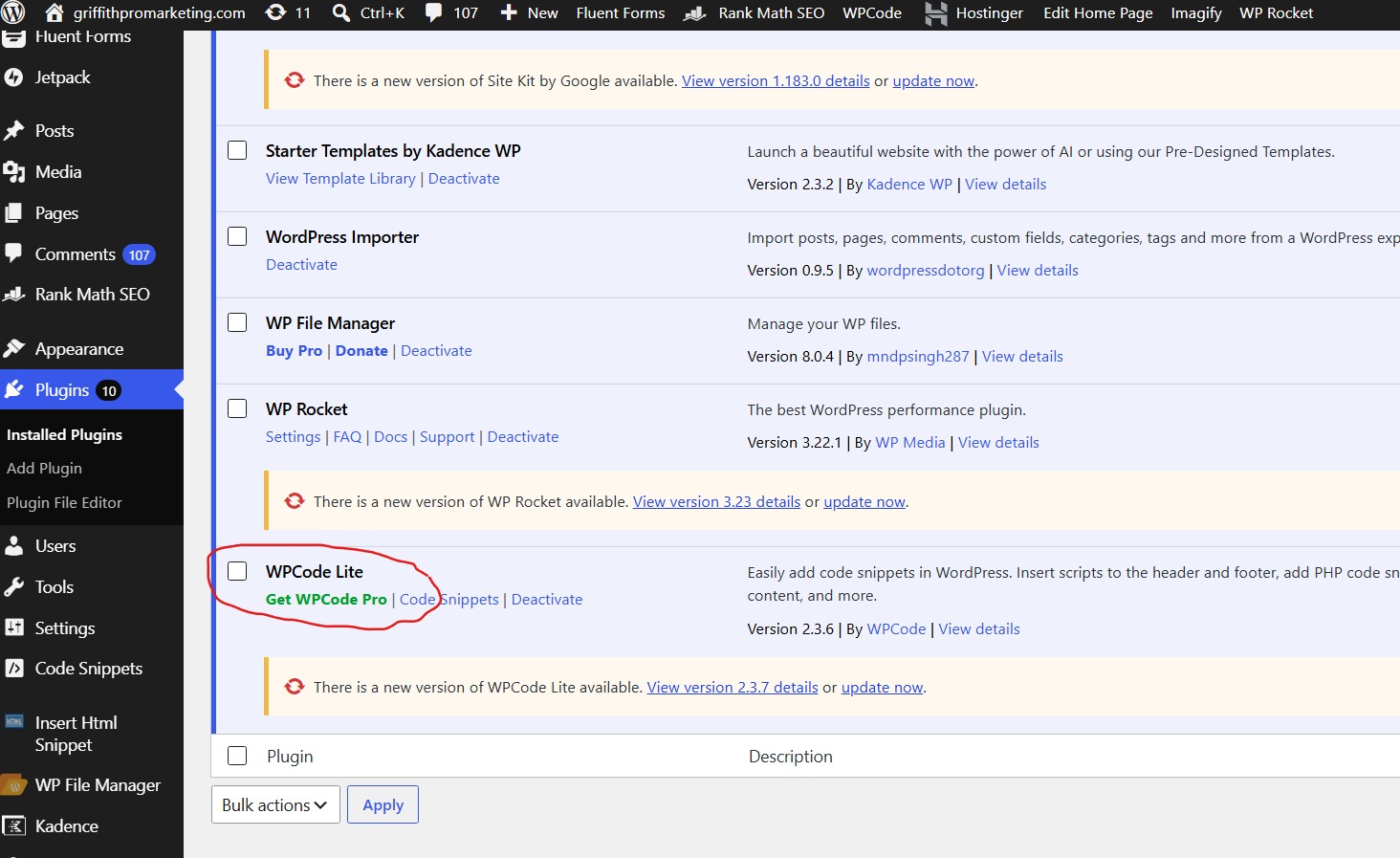
WPCode, sitting in the plugins list under its actual name.
So if you’re hunting for “WPCode” in your own sidebar and coming up empty, stop looking for that exact phrase. Look for Code Snippets instead. Small thing, but it’s the kind of small thing that wastes fifteen minutes of your life for no good reason.
Getting to the Right Screen
Inside Code Snippets there’s a specific screen for this, Header & Footer, tucked away from the main snippets list where you’d normally build individual PHP or JS snippets one at a time.
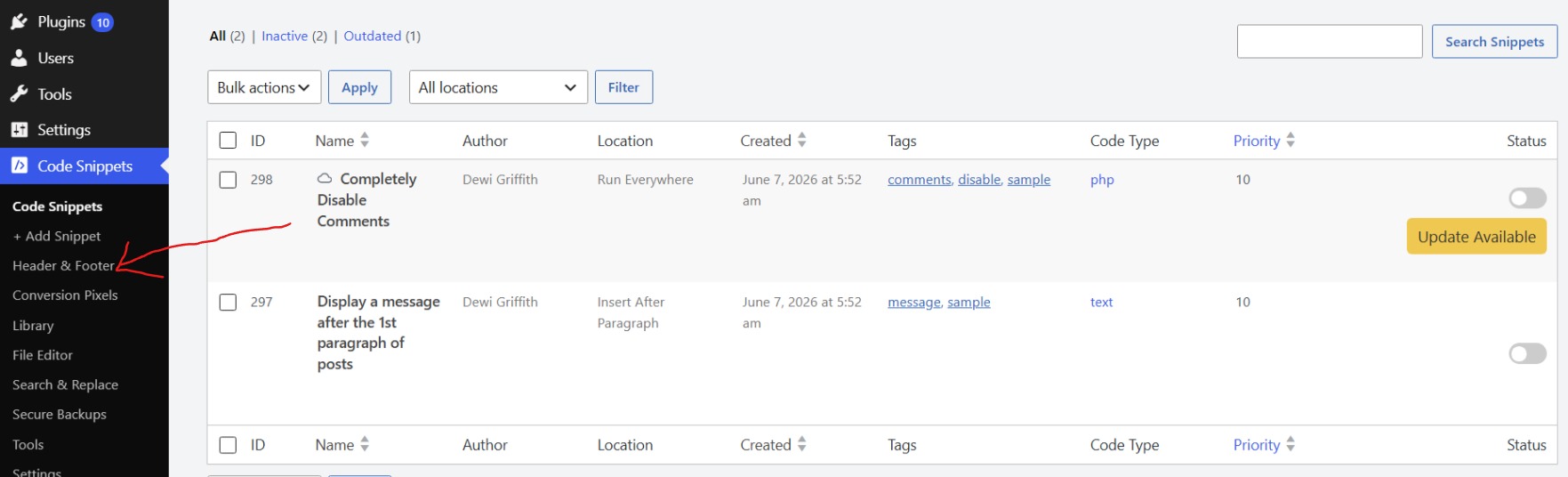
The Header & Footer screen, tucked under Code Snippets.
Three boxes. Header, Body, Footer. Whatever goes in any of them lands on every single page of the site, automatically, forever, or at least until you go change it. This is genuinely the whole point of the exercise, and it’s almost annoyingly simple once you’re actually looking at the right screen.
The Thing Already Sitting There
Before I pasted anything in, there was already something living in the Header box. An Impact verification tag, left over from setting up my hosting affiliate program. My first reaction wasn’t curiosity, it was a small jolt of panic, the kind where you assume you’ve broken something just by noticing it exists.
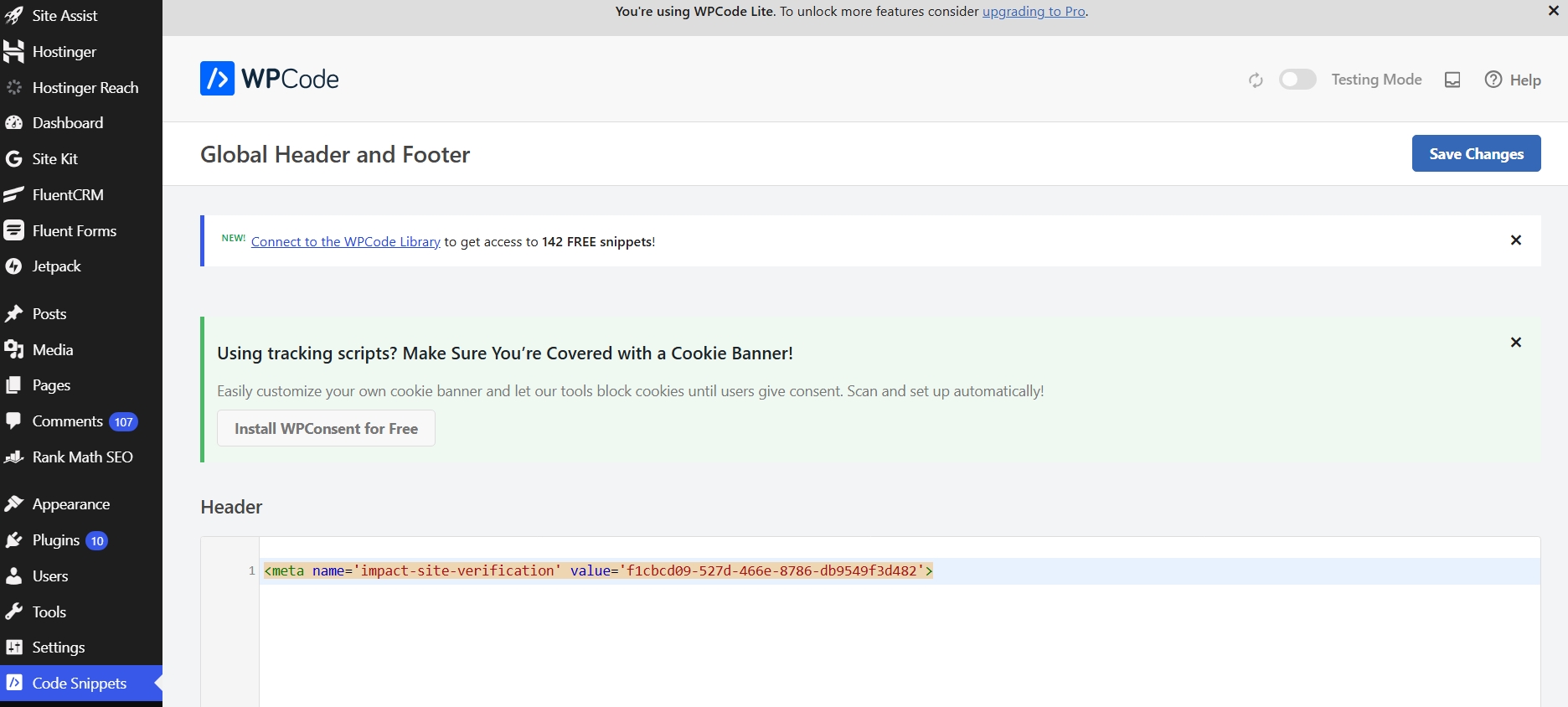
The Impact verification tag, already there, and meant to stay there.
Turns out it was fine. Better than fine, it was proof this box already does exactly what it’s meant to, holding more than one thing at once without any of them fighting for space. The Tag Manager script just goes underneath it. No drama, despite my best efforts to manufacture some.
Pasting Both Snippets In
Script into Header, straight after the Impact tag. Noscript into Body, on its own. Save. That’s genuinely it, and I almost feel like I’m underselling how anticlimactic this part is after making such a meal of the manual version.
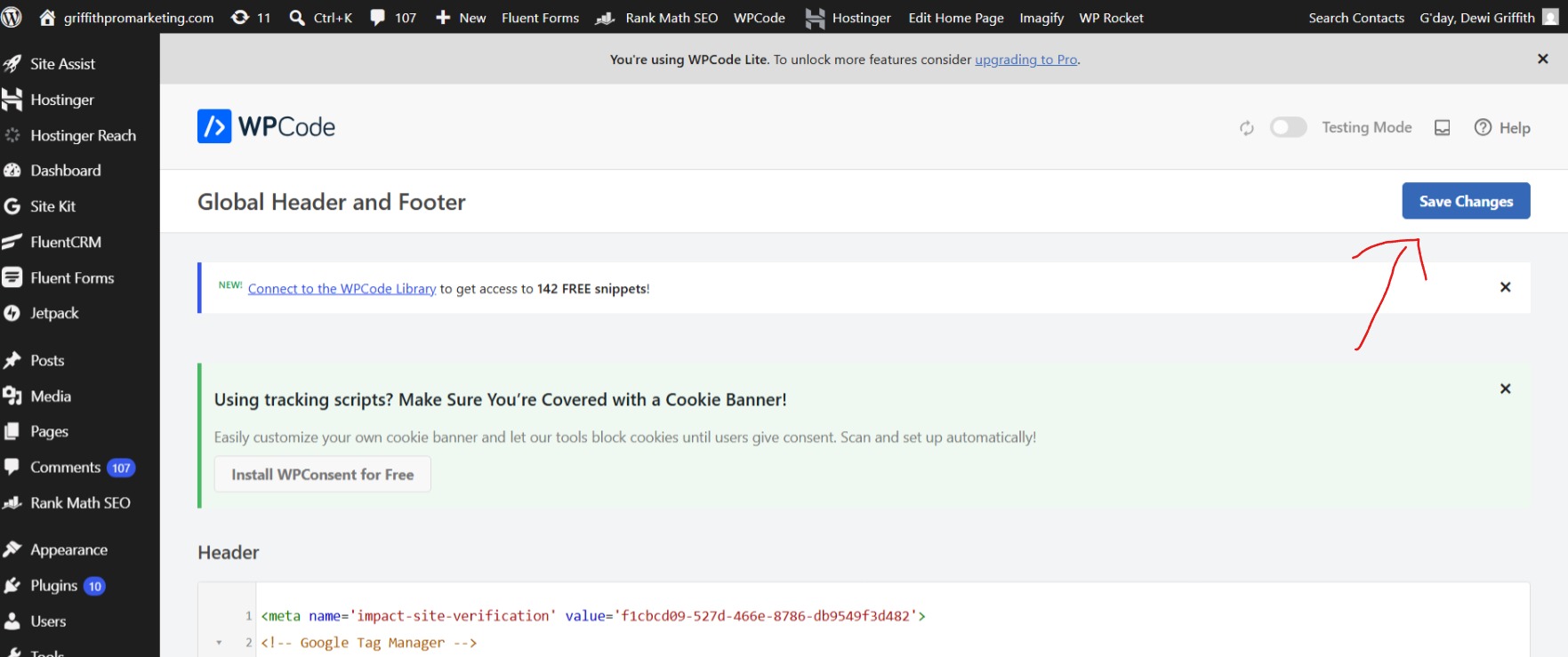
The easiest step to forget after doing the harder part correctly.
I will say this though, don’t get cocky and skip the save button. I’ve done it before, on other things, and then sat there confused for ten minutes wondering why nothing changed. It’s always the save button. It’s basically never the code.
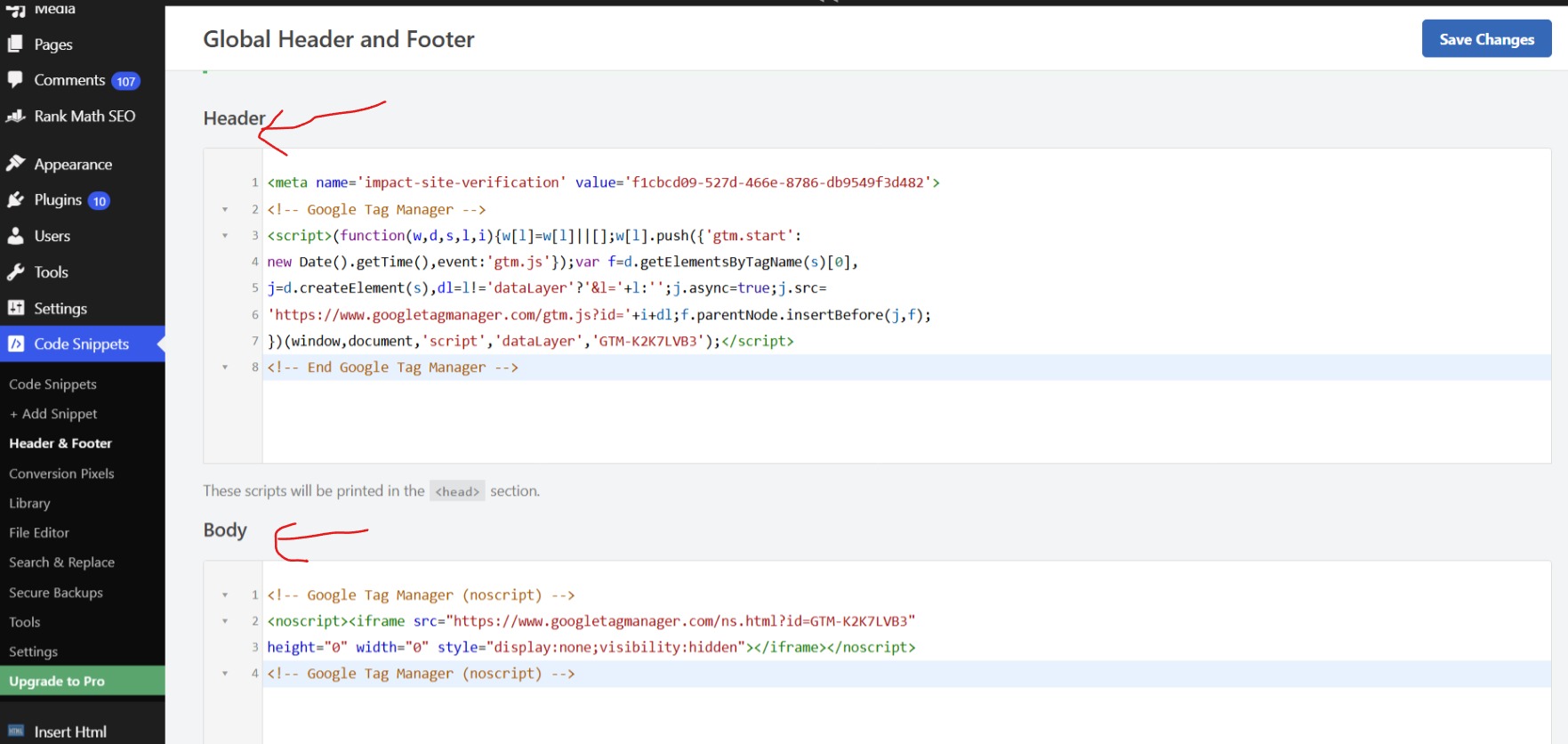
Both boxes filled in, Header and Body, saved and live.
What Actually Changed
Here’s where I’ll admit the manual detour paid off, even though I complained about it a paragraph ago. My very first container, back on the old digitalpromarketing.net site, sat under a red Container quality: Urgent warning, with a tag that had straight up stopped sending data and nobody, meaning me, had noticed.
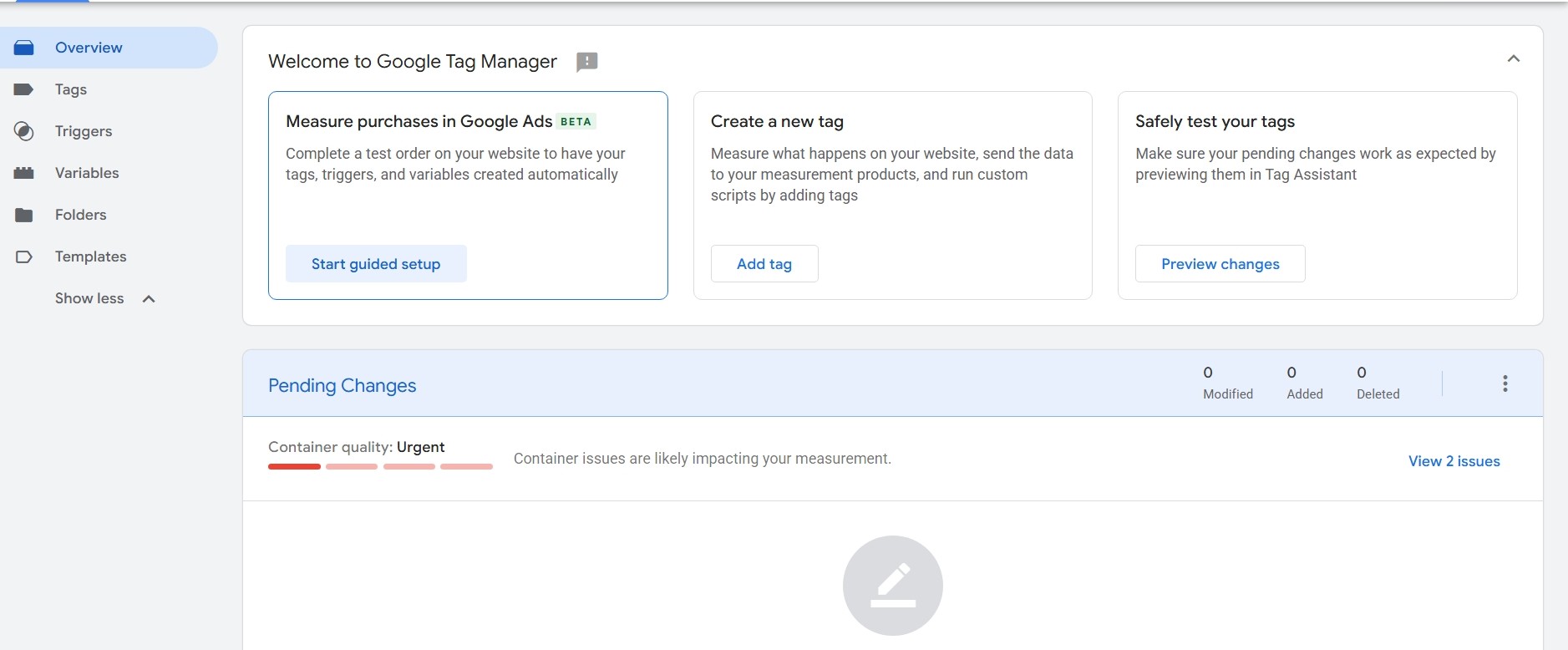
Before
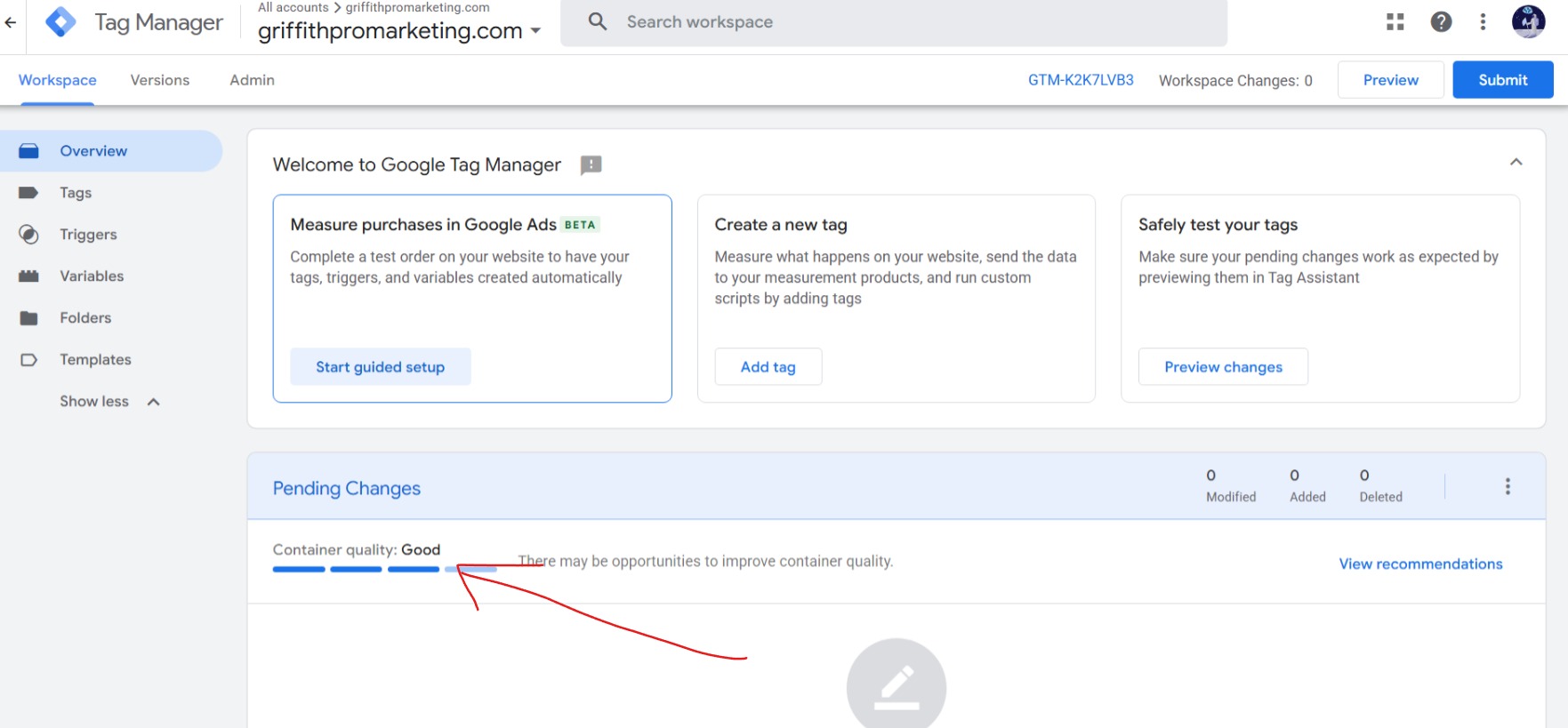
After
Same person, two different containers, one real fix in between.
I’d be lying if I said seeing “Good” instead of “Urgent” didn’t feel a little better than it probably should. It’s not a huge achievement. Plenty of people do this correctly on the first attempt without ever writing about it. But I didn’t, not the first time, and this time I actually know why it worked instead of just hoping it did.
It still says there may be room to improve further, and I’m leaving that alone for now. Good is good. I’m not chasing perfect on a container that used to be actively broken and unnoticed for years.
Why I’d Never Go Back to the Manual Version
One save covers every page that exists right now, and every page I publish after this, without me needing to remember to do anything extra. That alone makes the manual method a genuinely bad long-term choice, not just a slower one.
There’s exactly one place to check if something ever looks off later. Not fifty separate pages, each with their own slightly-off copy-paste job that might have drifted from the original instructions in fifty slightly different ways.
And honestly, the placement risk alone kills the manual approach for me. Copy-pasting the same code by hand fifty times isn’t fifty chances to get it right. It’s fifty chances to get it wrong, and I only need one of those to go sideways for the whole thing to quietly stop working the way my old container did.
If you missed the earlier posts in this series, here’s the original broken container that started all this, and here’s the manual, one-page version this post is the direct fix for. If you want the plain explanation of what Tag Manager and GA4 actually are before any of this, that’s covered here.