
Google Tag Manager Mistakes I Made in My First Ever Container
These are the Google Tag Manager mistakes I made before I actually understood what any of it did. Before Griffith Pro Marketing existed, there was another site. digitalpromarketing.net, my old practice site, back when I was still learning what half of these tools even did.
I went digging through my old Tag Manager account recently, mostly out of curiosity, and found the container I’d set up for it. I want to walk through exactly what I found, because it’s a genuinely useful map of everything I didn’t understand yet at the time.
The container, still sitting there under the account name digitalpromarketing.
The First Sign Something Was Off
The moment I opened the overview screen, before I’d even looked at anything specific, Tag Manager was already telling me something was wrong.
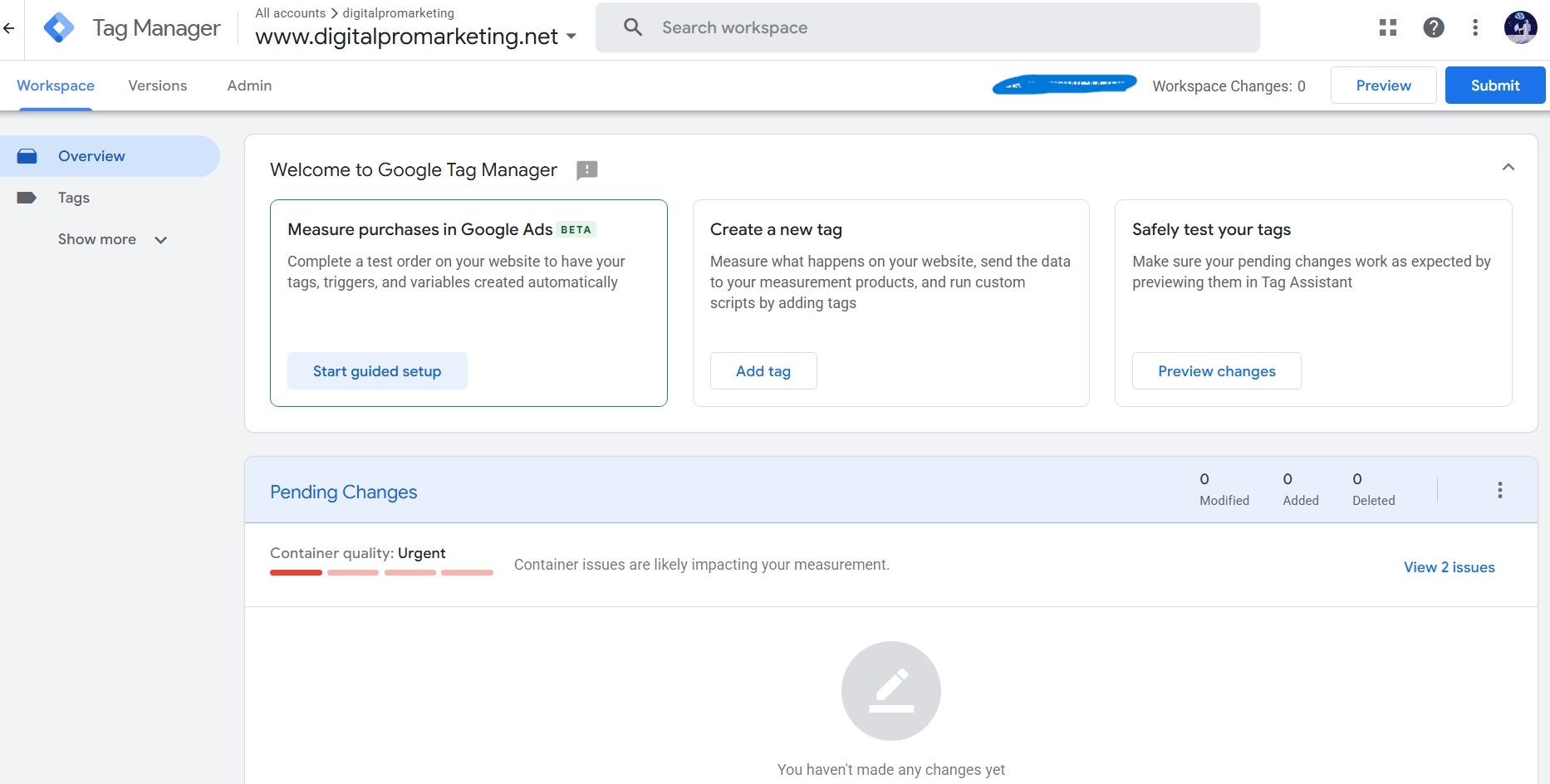
Container quality: Urgent. Two issues waiting.
At the time, I don’t think I would have known what “container quality” even meant, let alone why it mattered. Looking at it now, it’s a pretty clear signal, and I want to actually explain what it’s built from, since I suspect a lot of people staring at this exact screen today are just as unsure as I was.
What “Urgent” Actually Meant
Clicking into the diagnostics gave me the full picture.
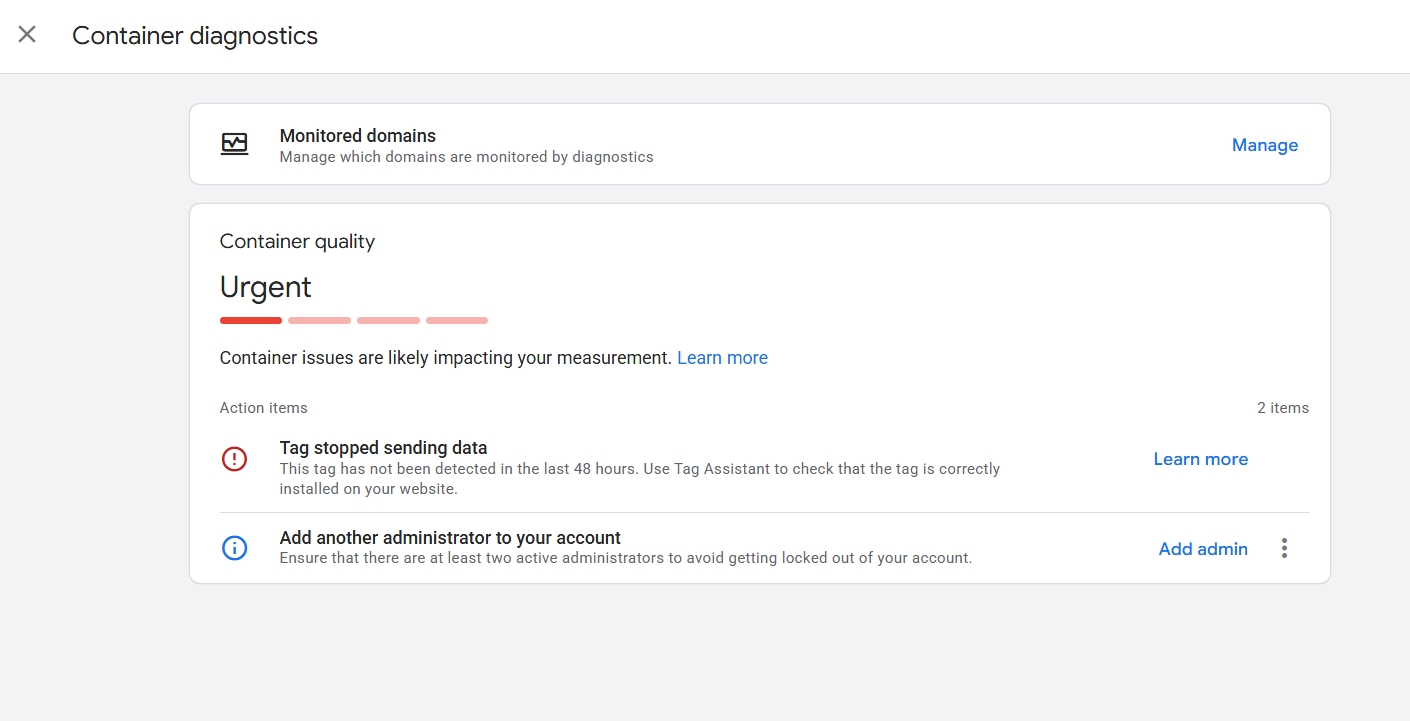
Two action items. One of them a genuine red flag.
The first item said a tag had stopped sending data, not detected in the last 48 hours. That phrase confused me more than it should have, since when I checked the Tags section of this same container, it told me something that seemed to contradict it entirely.
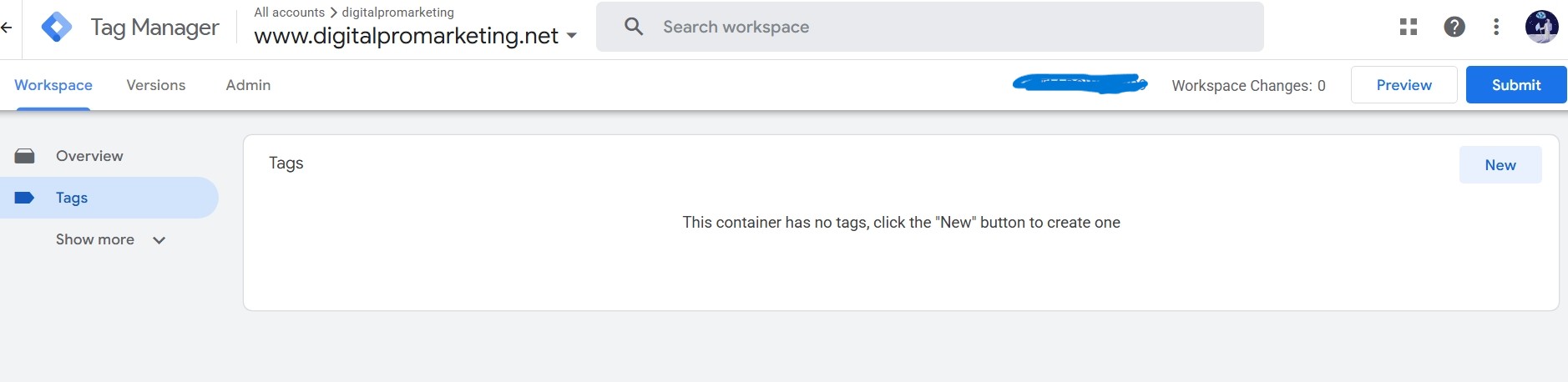
No tags. Not one.
How can a tag stop sending data if there was never a tag inside this container to begin with? The answer, once I understood it, was actually an important lesson on its own. Tag Manager’s diagnostics don’t only watch what’s built inside the container itself, they also watch domains it’s monitoring for any tracking activity at all, including things installed completely separately from Tag Manager, like a raw analytics snippet pasted directly into the site’s theme.
Somewhere along the way, I’d apparently dropped a tracking script directly into the site outside of Tag Manager entirely, then never touched it again. It ran for a while, then quietly stopped, and because nothing was actually set up to alert me properly, I never noticed. The container I thought I was building in was essentially an empty shell sitting next to a separate, unmanaged tracking script that had already died.
The Empty Shell, In Detail
Once I understood that the container itself was empty, the rest of what I found made a lot more sense.
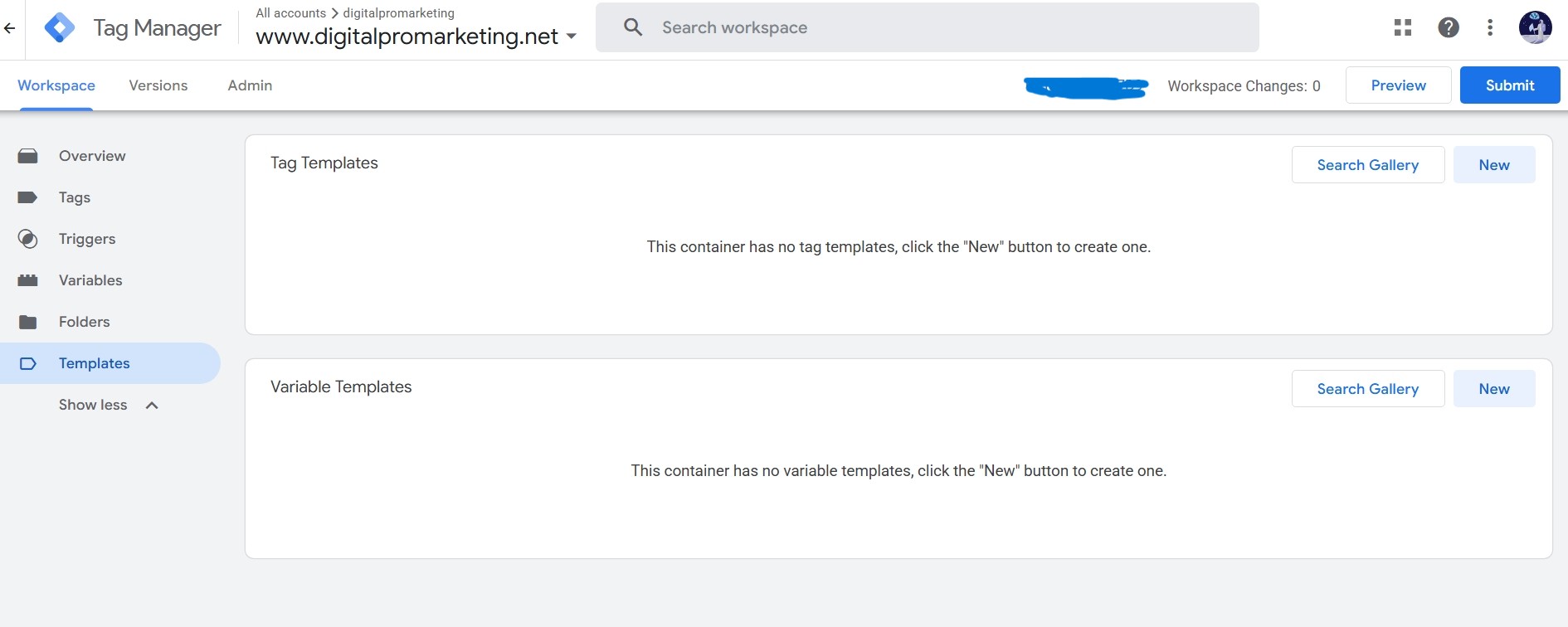
No tag templates. No variable templates. A container that had never actually been built out.
Templates in Tag Manager are essentially pre-built blueprints, the thing that lets you drop in a Google Ads conversion tag or a Facebook Pixel without hand-coding it yourself. Having none installed wasn’t a mistake exactly, it just meant I’d created the container and then never gone back to actually configure anything inside it.
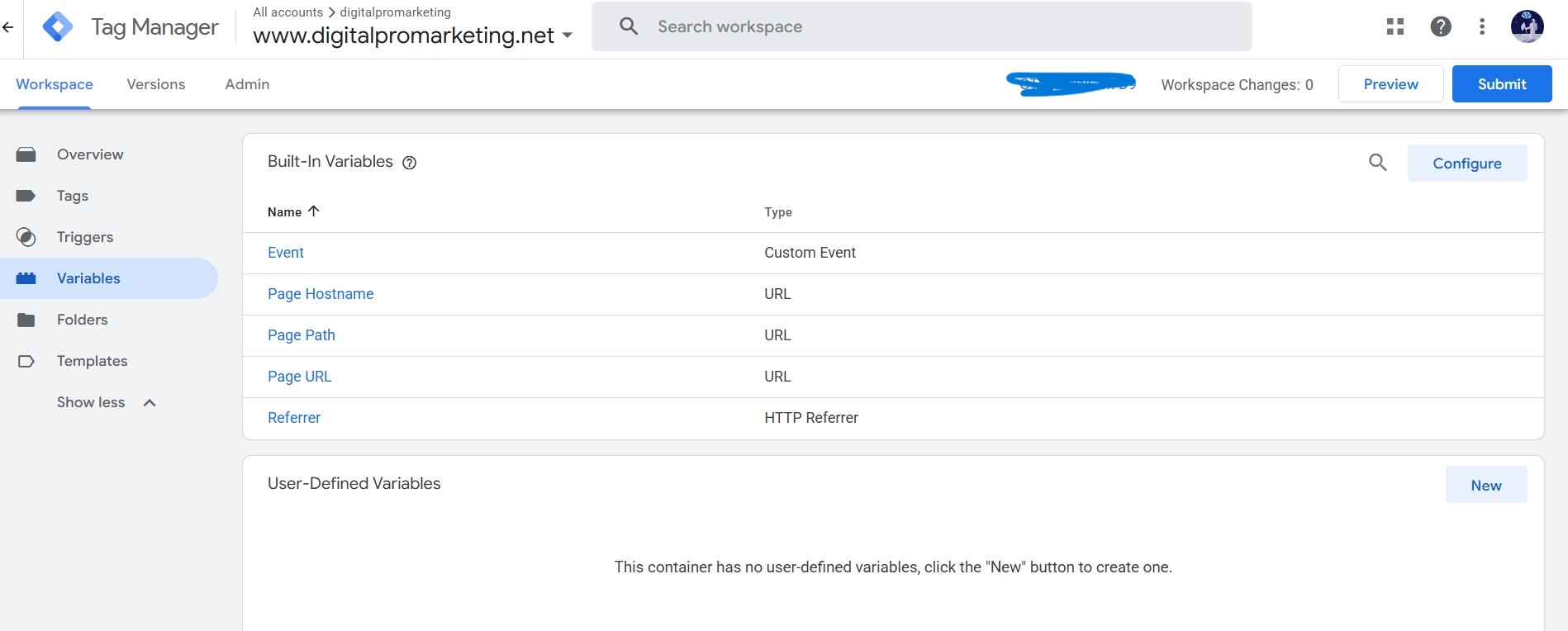
A handful of default variables. Nothing custom.
The built-in variables, Page Hostname, Page Path, Page URL, Referrer, come switched on automatically the moment you create a container, so their presence here doesn’t really prove I did anything. The empty “user-defined variables” section is the more honest signal. That’s where you’d build anything specific to your own site, tracking a particular button, a particular form, a particular scroll depth. None of that existed.
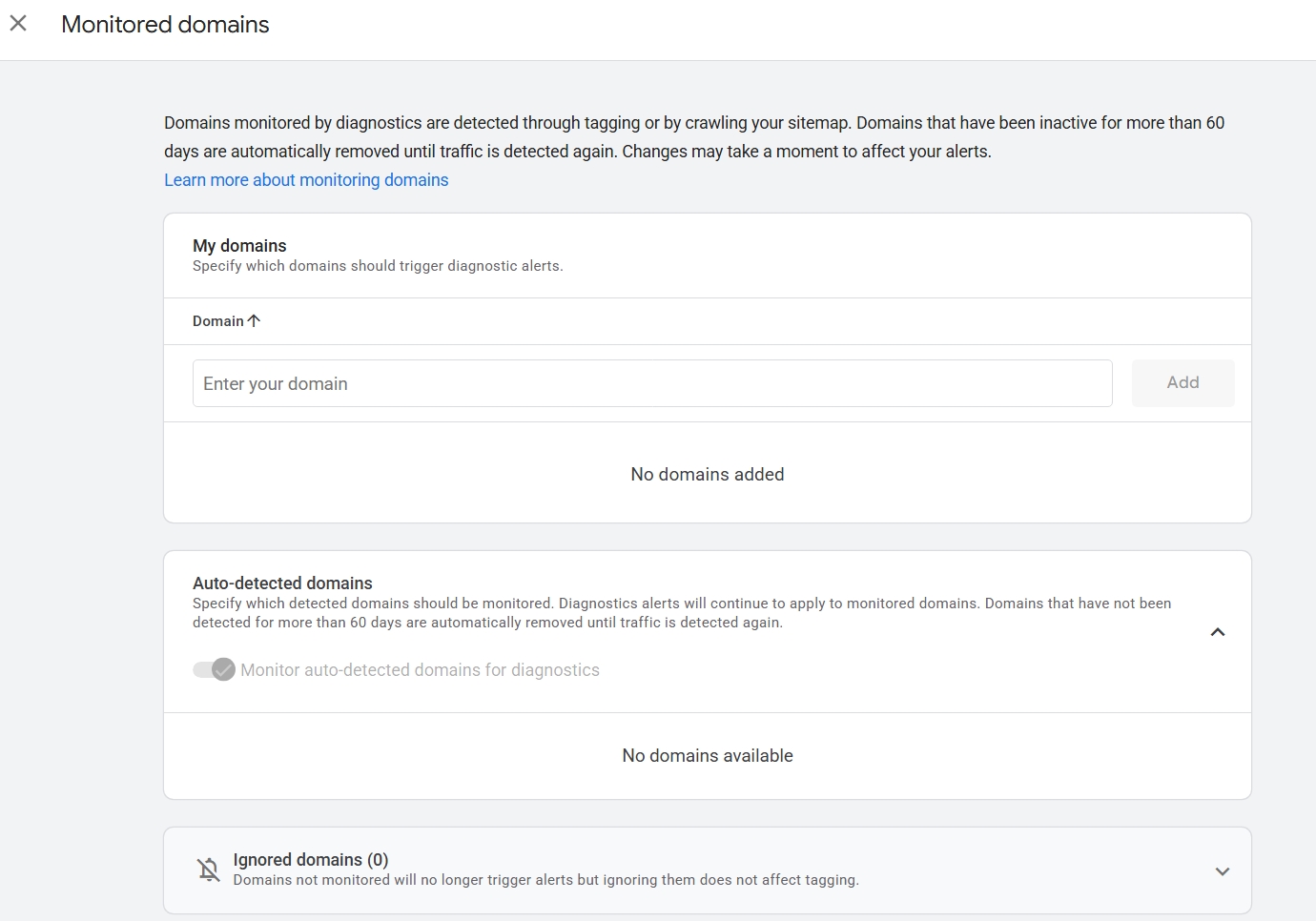
No domains actively monitored either.
Even the domain monitoring, the thing that would have caught a dead tag faster, had nothing configured. So the setup wasn’t really broken in the dramatic sense. It was just never finished. A container gets created the moment you sign up, but a container isn’t tracking anything on its own. It’s an empty toolbox until you actually put tools in it, and I’d stopped right after buying the toolbox.
What I Actually Learned From This, Looking Back
A few things stand out now that I understand the tools properly. Looking back, these were genuinely textbook Google Tag Manager mistakes, the kind that are easy to make once and never repeat once someone explains what actually went wrong.
Creating a Tag Manager container is not the same as tracking anything. I think a lot of beginners, myself included at the time, assume that signing up and getting a container ID means data is flowing. It isn’t, not until tags are actually built and published inside it.
A tag existing somewhere on your site, outside of any proper management system, is worse than no tag at all in some ways. It gives a false sense that something is being measured, right up until it silently breaks, and nothing tells you.
Diagnostics only work if you actually look at them. That “Urgent” label had been sitting there, presumably, since long before I ever clicked into it. A warning nobody reads isn’t really a warning.
This is also, honestly, why I nearly made a similar mistake more recently, misreading a number in Google Search Console because I didn’t actually understand what it was built from. Different tool, same underlying habit: glancing at a dashboard instead of actually reading it.
Where This Leaves the Tracking on This Site Now
Griffith Pro Marketing didn’t inherit any of this mess, since it’s a completely separate build, done with everything I’ve learned since. But I wanted to walk through the old container honestly rather than pretend I started out knowing what I was doing, because I genuinely didn’t.
The next post in this series is the one I actually needed back then: a proper, current walkthrough of setting up GA4 correctly on a WordPress site from the start, rather than accidentally creating an empty shell and a silently dying script side by side. If you’re setting up tracking for the first time right now, that’s the post to read next, not this one.